


In this article:
- Section 1 with long heading text
- Section 2 with long heading text falling on to two lines
- Section 3 with long heading text
- Section 4 with long heading text falling on to two lines
Share this article


Did you know you can process Medicare and CDBS claims directly from Dentally?
You can seamlessly and effortlessly submit and manage your claims straight from your patients record. Let's delve into some of the features that will help you streamline your Medicare billing and CDBS management.

Medicare Card Details
Adding a patient's Medicare card details can now be done directly from the patients record, by clicking the edit icon next to the Medicare number field. You can enter the 10-digit number, the individual IRN and the expiry date.
You can also choose the patient's payment plan. If they are a CDBS patient, you can enter the patient's balance, then click Save.
Once added, you will only be able to see the last digit of the Medicare number for security reasons. To edit of view the full card details, simply select the edit icon. 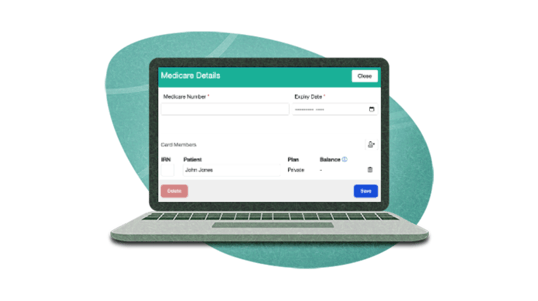
Adding Family Members
If a patient has a Medicare card, Dentally makes it easy to add additional family members without adding all the details again!
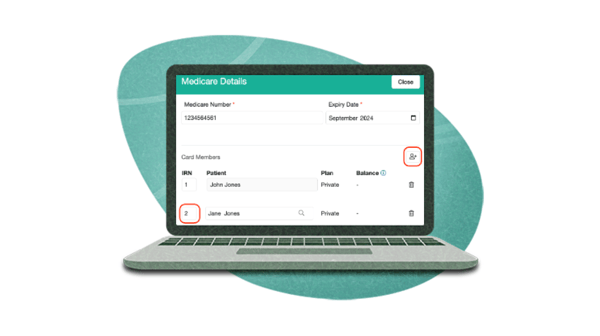
You can add up to 9 family members per card, simplifying the management of multiple beneficiaries under one card. Here’s how;
- Click the "+" icon next to Card members.
- Type in the first 3 characters of the patient's name.
- Select the relevant name from the dropdown list.
- If the patient is new, ensure you add them to Dentally first.
- Add the relevant IRN as per the Medicare card.
- Click "Save."
CDBS Treatment
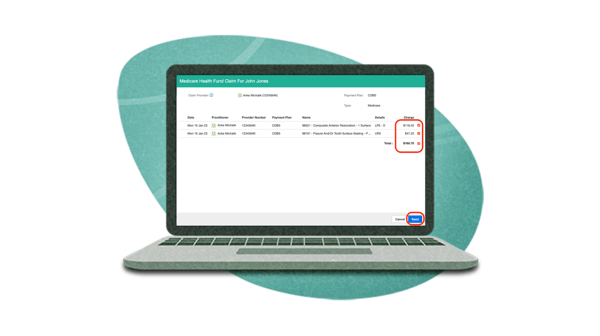
For young patients on a CDBS plan, Dentally allows you to store and update the patient's CDBS balance, as well as submit and send claims
When providing treatment under CDBS, it's essential to use the 5-digit (88xxx) treatment codes in Dentally.
These are the only ones to be accepted successfully when submitting your claim.
 The patient's CDBS balance will always be visible at the top of the patient's record for reference during treatment and can be edited from the patient details screen.
If a CDBS patient doesn't have a balance, a red CDBS balance indicator and '?' symbol will prompt you to add their balance before their appointment. Update the balance as needed, ensuring patients know their remaining benefits.
To explore more information for a smoother, simpler claim process through our Medicare and CDBS integration, visit our dedicated Help Centre collection here.
If you have any further questions or need assistance getting started, don't hesitate to contact our dedicated support team.
Connect with us on social media
We'd love for you to join our online community. Stay up-to-date with our latest news, events, and content by following us on our social channels. We look forward to seeing you there!


